Add the Council to Your Safe Sender List/Allowlists
Make sure you don’t miss important Council communications. Add cof.org to your safe sender lists!
When your organization becomes a Council member, we ask that cof.org gets added to your organization-wide allowlists. This ensures that Council emails can get delivered to all staff at your organization. Usually, your IT team will have to make this update. You can send them the link to this page with your request to add cof.org to your organization-wide allowlist or copy and paste the appropriate instructions.
You can also add cof.org to your individual safe sender list in your inbox. This helps ensure our emails don’t get stuck in your spam or junk folder.
Here are detailed instructions on how to add cof.org to safe sender/allowlists:
Organization-Wide Safe Sender Lists
Individual Safe Sender Lists
Organization-Wide Safe Sender Lists
Microsoft 365
- Sign in to the Microsoft Defender portal at https://security.microsoft.com.
- Go to Email & collaboration > Policies & rules > Threat policies.
- Select Tenant Allow/Block Lists.
- On the Domains & addresses tab, click + Add.
- Enter cof.org and set it to Allow.
- Select 45 days after last used date (this is the default) for when to remove this rule and click Add.
The Council has in place multiple safeguards to stop spoofing from cof.org email addresses, so we recommend you allow all emails from cof.org. If you are only comfortable adding specific email addresses, add info@cof.org, membership@cof.org, govt@cof.org, legal@cof.org, conferences@cof.org, and registration@cof.org. Microsoft does not recommend using IP addresses, but you can see a list of possible IP addresses and ranges the Council sends bulk email from at the bottom of this page.
See detailed instructions and other options on Microsoft's Documentation.
Google Workspace
If you do not already have a Safe Sender List:
- Sign in to the Google Admin console.
- From the Menu, navigate to: Apps > Google Workspace > Gmail > Spam, Phishing and Malware
- On the left, select an organizational unit.
- Scroll to Spam and click Configure or Add another rule.
- In the Add setting box, enter a unique name for the setting (example: Safe Sender Rule).
- Select Bypass spam filters and hide warnings for messages from senders or domains in selected lists (or other Bypass setting you are comfortable with).
- Create a Safe Sender Address List and add cof.org.
- At the bottom of the Add setting box, click Save.
If you already have a Safe Sender Address List and Rule, just add cof.org to the address list.
The Council has in place multiple safeguards to stop spoofing from cof.org email addresses, so we recommend you allow all emails from cof.org. If you are only comfortable adding specific email addresses, add info@cof.org, membership@cof.org, govt@cof.org, legal@cof.org, conferences@cof.org, and registration@cof.org. If you would prefer to use IP addresses, you can view a list of possible IP addresses and ranges the Council sends bulk email from at the bottom of this page.
See detailed instructions and other options on Google Workspace Admin Help.
Zoho Mail/Workplace
- Login to the Zoho Mail Admin Console.
- Go to the Security & Compliance menu.
- Select Spam Control > Allowed List > Domains.
- Click Add.
- Enter cof.org.
- Click Add to save the entry.
The Council has in place multiple safeguards to stop spoofing from cof.org email addresses, so we recommend you allow all emails from cof.org. If you are only comfortable adding specific email addresses, add info@cof.org, membership@cof.org, govt@cof.org, legal@cof.org, conferences@cof.org, and registration@cof.org. If you would prefer to use IP addresses, you can view a list of possible IP addresses and ranges the Council sends bulk email from at the bottom of this page.
See detailed instructions and other options on Zoho Mail Documentation.
Individual Safe Sender Lists
Gmail
- In Gmail, click the gear icon and choose See all settings.
- Open the Filters and blocked addresses tab.
- Click Create a new filter.
- In the From field, enter the Council’s domain: @cof.org
- Click Create filter.
- Check Never send it to Spam (and any other options you like, e.g., “Star it”).
- Click Create filter again to save.
These settings apply to your Gmail account, so the same filter will keep messages in the Inbox whether you use the Gmail app or you access Gmail from a web browser.
Outlook.com/Office 365 (web)
- Click the gear icon in Outlook and choose View all Outlook settings.
- Go to Mail > Junk email.
- Under Safe senders and domains, click + Add.
- Enter the Council’s domain: @cof.org.
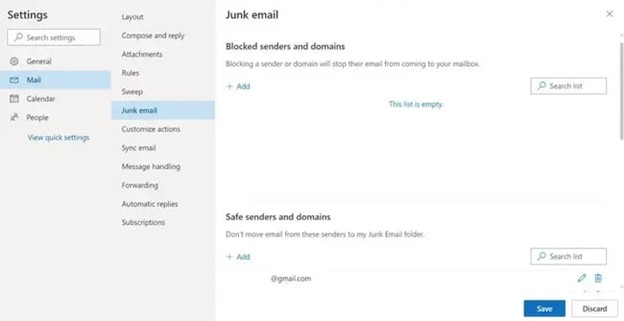
- Click Save to store your changes.
Outlook Desktop App
- Open your Outlook desktop app.
- From the top menu, click Tools and then choose Rules... OR (depending on your version) File > Manage Rules & Alerts.
- Click New Rule and give it a clear name (for example, “Trusted sender”).
- Set the condition so From matches @cof.org.
- Set the action to Move the message to and select your Inbox.
- Save the rule so future messages from that sender/domain go directly to your Inbox.
Apple Mail
- Open Mail on your Mac and log into your account if needed.
- From the top menu, click Mail > Preferences, then open the Rules tab.
- Click Add Rule, give it a descriptive name (for example, “Trusted emails”), and select “any”, “From”, and “contains” and add the Council’s domain: @cof.org.
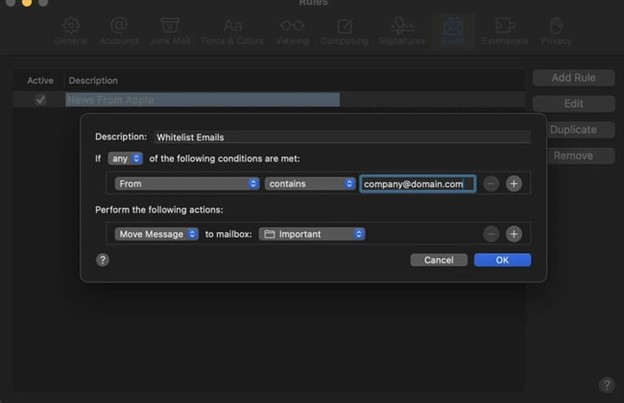
- Under Perform the following actions, choose Move Message and set the destination to Inbox.
- Click OK to save the rule.
Yahoo Mail
- Open Yahoo Mail and log in.
- Navigate to “Settings” then click “More Settings.”
- Select “Filters” and hit “Add new filters”.
- Name your filter (example Safe Sender List, Council on Foundations, etc.)
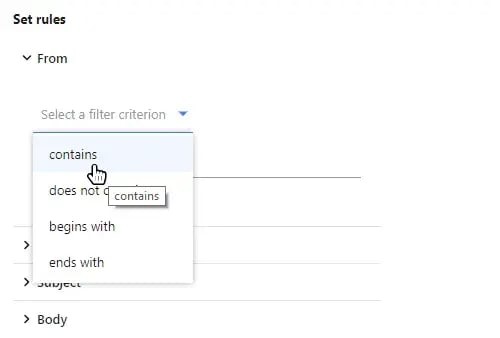
- Select “From” and “contains” and add @cof.org on the Set rules screen.
- Select to send all mail to “Inbox.”
- Save your settings.
AOL Mail
- Log in to your AOL Mail account.
- In the left navigation, click Contacts.
- Click New Contact.
- Enter @cof.org as the domain you want to trust.
- Click Add Contact to save.
Proton Mail
- Log in to your Proton Mail account.
- Click the settings gear and choose Go to settings.
- From the sidebar, open Filters and look for the Spam, block, and allow lists section.
- Click Add address or domain, then choose Allow.
- Select domain, then add @cof.org.
- Click Add address to save.
Council Email IPs
The Council does not recommend using IP addresses in allowlists because of the frequency of which they can change. If necessary here are the current IP addresses we are most likely to send bulk emails from:
141.193.184.64/26
141.193.185.128/25
18.208.124.128/25
141.193.184.128/25
141.193.185.64/26
158.247.16.0/20
3.93.157.0/24
216.139.64.0/19
108.179.144.0/20
54.174.60.0/23
143.244.80.0/20
54.174.59.0/24
54.174.63.0/24
3.210.190.0/24
141.193.184.32/27
54.174.52.0/24
139.180.17.0/24
141.193.185.32/27
54.174.57.0/24
143.244.93.109
44.238.67.234
52.88.39.26
44.236.41.178
44.234.243.86
44.237.70.168
54.148.13.220
3.211.218.161
52.201.77.107
54.166.102.102
100.21.3.223
52.13.153.245
52.13.32.219
18.116.99.79
18.223.105.148
3.136.176.246